Most WordPress sites are not compromised because someone singled them out. They are compromised because an automated script worked through a list of a few hundred thousand domains, tested each one for the same short list of weaknesses, and yours happened to have one of them.
That is the uncomfortable part. The attack is not clever. It is just fast, cheap, and relentless. A bot does not care whether you run a village hall booking page or a shop turning over six figures a month. It cares whether your login form has any rate limiting, whether your usernames can be pulled straight out of the REST API, and whether you left a debug log sitting in the web root.
The good news is that the list of things those scripts look for is short and well known. If you close them off, you drop out of the easy pile. That is what the free Aardwolf Security Scanner plugin is built to help with: it runs the same reconnaissance checks an attacker would run against your site, then tells you in plain language what it found and how to fix it.
Table of Contents
What an opportunistic attack actually looks like
Before the payload comes the reconnaissance, and it is nearly always the same sequence.
A scanner requests your home page and reads the response headers. It notes the generator meta tag, which happily announces your WordPress version. It tries readme.html, which also announces your version. It hits /wp-json/wp/v2/users to see if it can list your usernames. It tries ?author=1 for the same reason. It checks whether xmlrpc.php answers, because that endpoint lets it try hundreds of password guesses in a single request. It looks for .git, .env, wp-config.php.bak and similar leftovers, because developers leave them behind more often than anyone would like to admit.
None of that is an attack. It is a shopping list. Every item that comes back positive makes the next stage easier, and if enough of them come back positive, you become worth the effort.
What the scanner checks
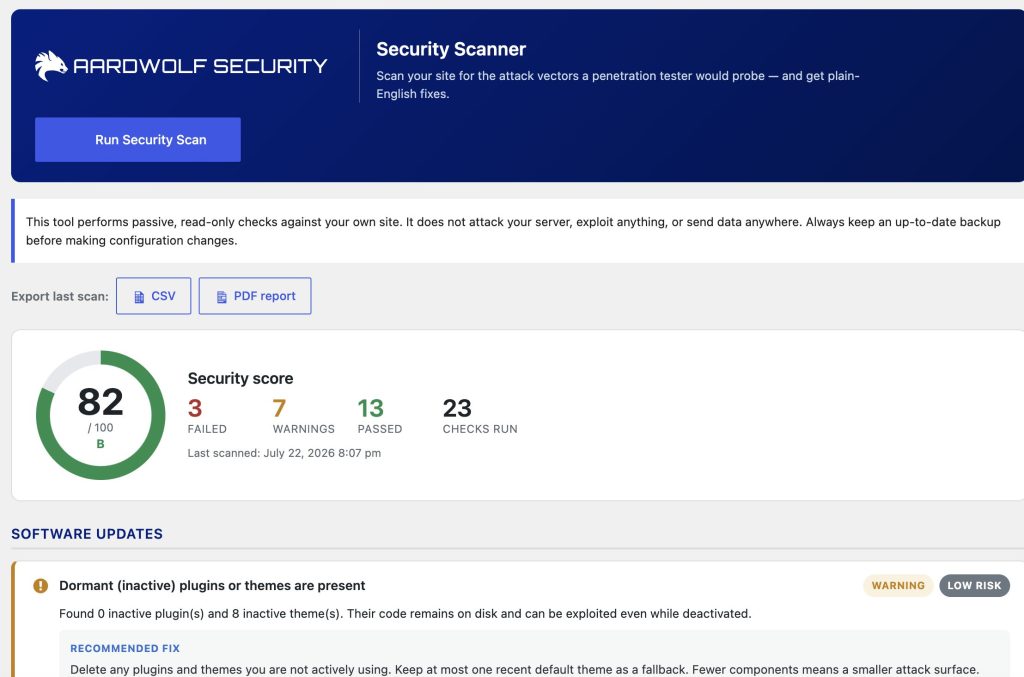
The plugin runs read-only checks across the areas that matter most in practice, and gives every finding a severity rating.
Software updates. Out of date core, plugins and themes, plus the ones sitting inactive on disk. Deactivated does not mean harmless. An inactive plugin with a known flaw can still be reachable if its files are directly requestable.
Accounts and authentication. Whether the default admin username still exists, whether usernames leak through author archives or the REST API, whether registration defaults are risky, and whether anything at all is slowing down brute force attempts against your login form.
Configuration. The dashboard file editor being enabled, debug output being exposed, missing or placeholder security keys and salts, the stock wp_ table prefix, and whether the admin area is forced over HTTPS.
Information exposure. A reachable XML-RPC endpoint, the version-leaking readme.html, the generator meta tag, directory browsing, and sensitive files such as debug logs, .git, .env and config backups left where the web server will serve them.
HTTP security headers. X-Frame-Options, X-Content-Type-Options, Referrer-Policy, Content-Security-Policy and HSTS. Not glamorous, but these are what stand between a small bug and a much larger one.
Transport and environment. Sites still running over plain HTTP, and installs sitting on an end of life PHP version that no longer receives security patches.
File permissions. World-readable or world-writable wp-config.php and site root, which is a shared hosting classic.
Known vulnerabilities. Installed plugins that have been pulled from the WordPress.org directory. A plugin disappearing from the directory very often means it was removed over an unresolved security issue, and the copy on your site carries on running regardless.
A score you can actually act on
Every scan produces a score out of 100 and a list of findings, each with a severity rating and clear steps to fix it. The score matters less as an absolute number than as a line you can watch. Run a scan today, fix the high-severity items, run it again next week, and you can see whether your site is getting safer or quietly drifting.
Scans can run on demand or on a schedule, daily or weekly, at a time of day you choose in your own site timezone. The plugin can email you when the score drops, when the number of problems increases, or when a high-risk issue appears. If you would rather see every result, you can have it email you after every scan instead.
You can export the latest scan as a CSV, or open a clean printable report and save it as a PDF from the browser. That second option turns out to be the useful one if you look after sites for clients, because a dated report showing what was wrong and what you fixed is easy to hand over and easy to invoice against.
What it deliberately does not do
It does not attack your server. Every check is read-only, so it is safe to run on a live production site. The requests it makes to look at headers and hunt for exposed files go to your own site and stay on your own server.
It does not phone home. There are no analytics, no account, no data leaving your install. The one external service it touches is the official WordPress.org Plugin API, which it asks whether any of your installed plugin slugs have been removed from the directory. All that leaves your site is the slug, for example akismet, and responses are cached for 24 hours.
It does not fix things for you. This is a deliberate choice. Automatic hardening has a habit of breaking sites in ways that are hard to trace weeks later, so the scanner reports the problem, explains it, and leaves the change in your hands.
And it is not a penetration test. Automated checks are a good first line of defence and they catch the things that get most sites owned, but they will not find broken access control in your custom booking form, or a logic flaw in your checkout. That still needs a human. We say this openly because it is true, and because a scanner that pretends otherwise is doing you a disservice.
Getting started
Install it from Plugins, Add New in your dashboard and search for Aardwolf Security Scanner, or download it from the WordPress plugin directory. Activate it, open Security Scanner in the admin menu, and click Run Security Scan. The first run takes seconds and you will have your list.
Fix the high-severity findings first, then set up a weekly scheduled scan with email alerts so that regressions do not go unnoticed. Sites change. A new plugin, a host migration, a well-meaning developer restoring an old config file, and something that was closed last month is open again.
It costs nothing and it takes about two minutes. If it turns up nothing, that is a good afternoon. If it turns up your .env file sitting in the web root, that is a much better one.
Aardwolf Security Scanner is built by Aardwolf Security, a UK penetration testing consultancy. If you find the plugin useful, a review on the plugin page genuinely helps other site owners find it.
Subscribe to our newsletter
Honest updates, straight to your inbox. Unsubscribe any time.